

Description
Download Rar 7Z Extractor – Fast, Secure Mac Archive Tool
Overview
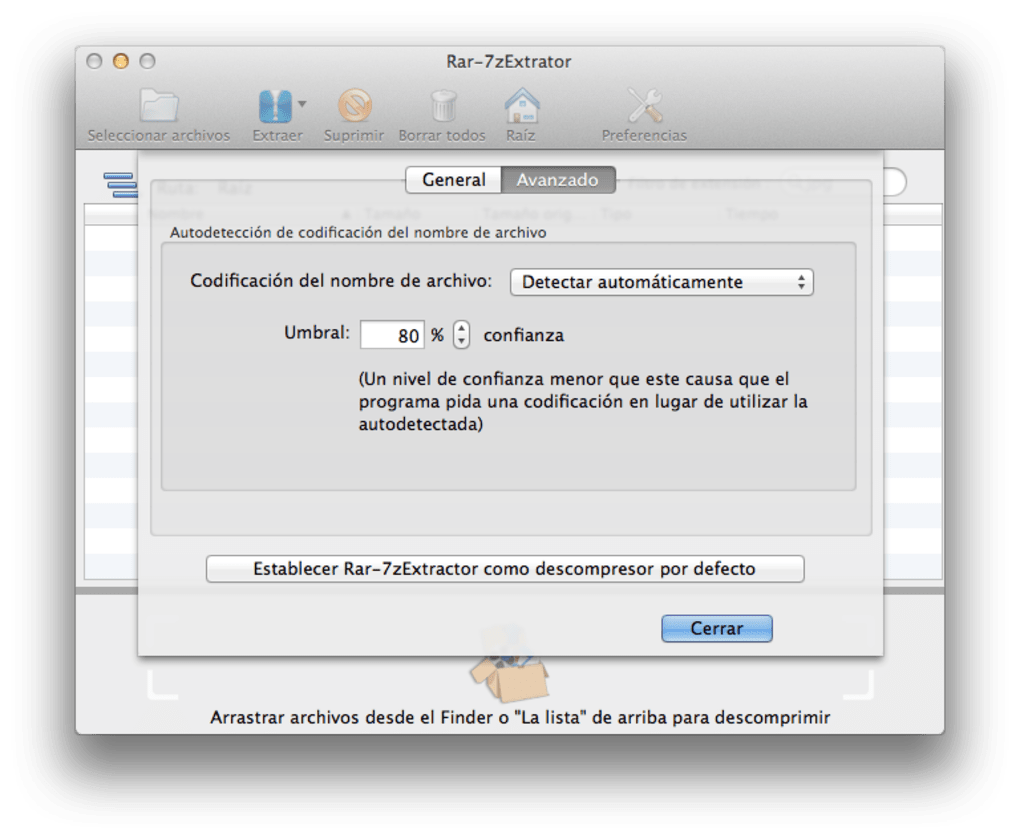
Rar 7Z Extractor is a full‑version Mac application developed by EffectMatrix that brings professional‑grade archive handling to macOS users. Launched on Softonic on March 21 2012, the tool has evolved into a reliable companion for anyone who works with compressed files daily. Whether you’re a designer unpacking asset bundles, a developer extracting source archives, or just a home user trying to open a downloaded .rar or .7z file, this software promises a smooth, secure, and fast experience. The current release, version 2.5.0, runs on macOS X and newer, supporting English, Spanish, and German interfaces. Its clean UI is built for both experienced power users and newcomers, eliminating the need for multiple third‑party utilities. By handling a wide spectrum of formats—RAR, 7Z, ZIP, TAR, BZIP2, and more—Rar 7Z Extractor consolidates what would otherwise be a cluttered toolbox into a single, easy‑to‑manage application. The app also respects macOS security standards, ensuring that extracted files are sandboxed and that the program receives regular updates to stay compatible with the latest OS releases. In short, if you need a dependable, all‑in‑one extractor that integrates seamlessly with the Mac ecosystem, Rar 7Z Extractor is worth a close look.
Key Features
- Supports over 20 archive formats, including RAR, 7Z, ZIP, TAR, GZ, BZ2, ISO, and more.
- Drag‑and‑drop interface for instant extraction without navigating through menus.
- Batch extraction capability – process multiple archives in a single operation.
- Secure sandboxed environment that protects your system from potentially malicious files.
- Context‑menu integration within Finder for one‑click extraction.
- Multi‑language support (English, Spanish, German) with easy language switching.
- Automatic update checker that notifies you of new versions and security patches.
- Preserves original file timestamps and directory structures during extraction.
- Lightweight footprint – less than 30 MB of disk space and minimal CPU usage.
- Full‑screen preview of archive contents before extracting.
Each feature has been designed with user productivity in mind. The drag‑and‑drop functionality, for example, removes the friction of opening a separate dialog; you simply drop an archive onto the app window, and it begins unpacking immediately. Batch extraction shines when you receive a collection of compressed logs or media files – you can select them all, hit “Extract All,” and let the program handle the rest while you focus on other tasks. Security is another cornerstone: the sandboxed environment isolates the extraction process, reducing the risk of executing hidden scripts or binaries that could compromise your Mac. Lastly, the context‑menu integration saves you clicks; right‑click any archive in Finder, choose “Extract with Rar 7Z Extractor,” and the tool does the work without you ever leaving the file explorer. These thoughtful touches make the app both powerful and approachable.
Installation & Usage Guide
Getting started with Rar 7Z Extractor is straightforward. First, download the installer from the official EffectMatrix website or a trusted Mac software portal. The file arrives as a .dmg package; double‑click it to mount the disk image, then drag the Rar 7Z Extractor icon into your Applications folder. macOS may warn you about an unidentified developer – simply open System Preferences → Security & Privacy and allow the app to run. Once installed, launch the program from the Dock or Applications folder. The main window presents a clean layout with a large “Add Files” button and a side panel that shows recent archives.
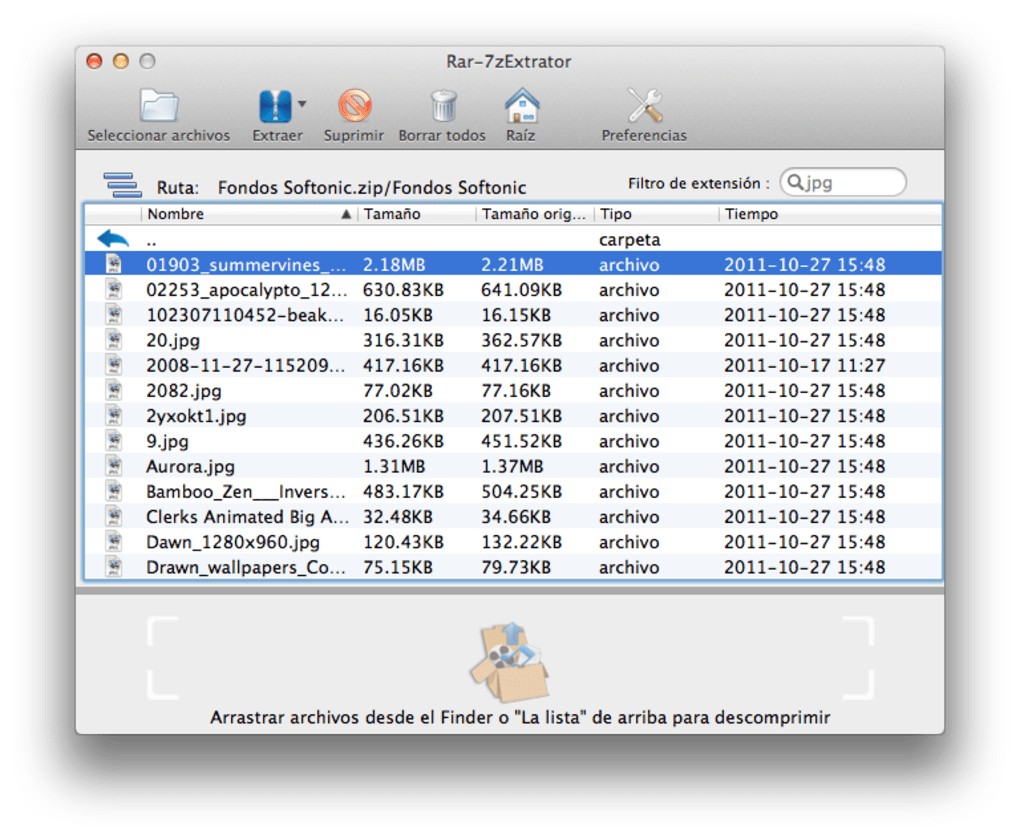
To extract a file, you have three intuitive options: (1) click “Add Files” and browse to the archive, (2) drag the archive from Finder onto the app window, or (3) right‑click the archive in Finder and select “Open With → Rar 7Z Extractor.” After the archive appears in the list, choose a destination folder—by default, the app creates a subfolder with the same name as the archive in your Downloads directory. Click “Extract” and watch the progress bar. For batch operations, select multiple archives using Shift‑click or Command‑click, then press “Extract All.” The tool will process each file sequentially, preserving folder structures. If you need to preview contents before extracting, simply double‑click the archive entry; a preview pane reveals the internal hierarchy, allowing you to select specific files for extraction.
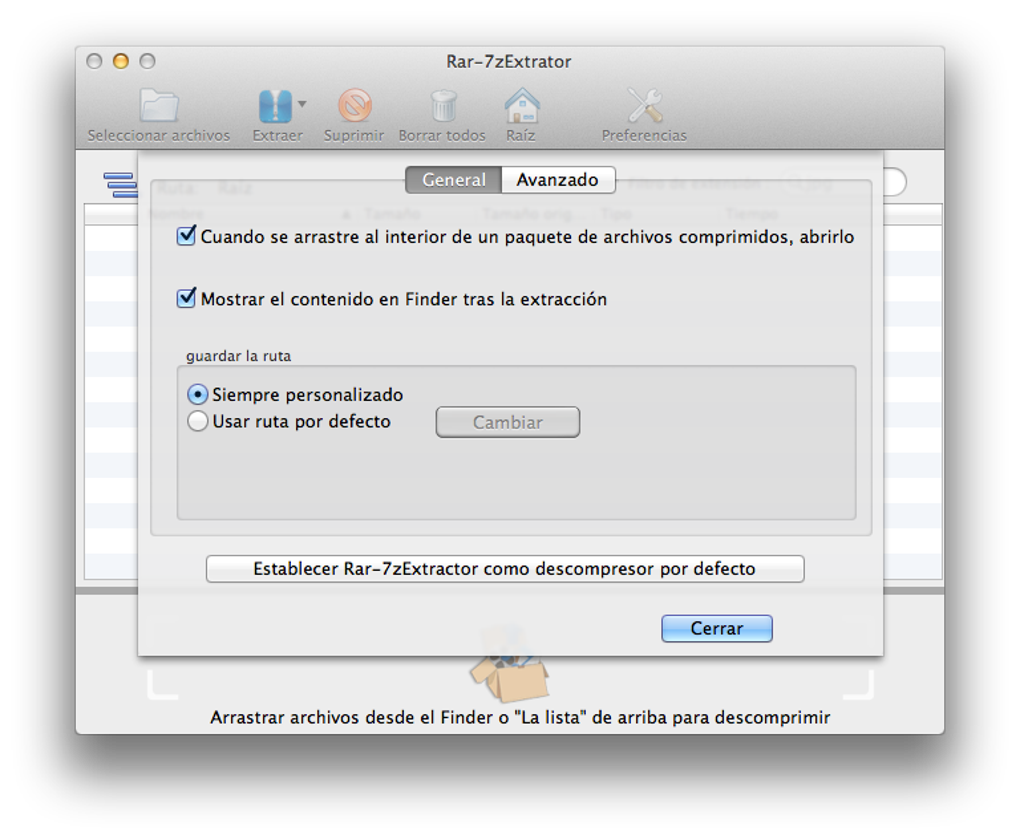
Updating the software is equally painless. The app checks for new releases at startup; if an update is available, a small notification appears in the top‑right corner. Clicking it redirects you to the download page, where you replace the old version with the new .dmg. Because the application stores its settings in the user library, your preferences (language, default extraction path, etc.) remain intact after an upgrade. Overall, the installation process respects macOS conventions, and the usage flow is designed to let you focus on your files rather than the tool itself.
Pros, Cons, and Frequently Asked Questions
Pros
- Broad format support eliminates the need for multiple utilities.
- Intuitive drag‑and‑drop and Finder integration speed up workflow.
- Secure sandboxed extraction protects the system from malicious archives.
- Lightweight and fast, with low CPU and memory consumption.
- Regular updates keep the app compatible with the latest macOS releases.
Cons
- No built‑in archive creation; focuses solely on extraction.
- Limited advanced options for power users (e.g., custom compression levels).
- Free trial expires after a limited number of extractions; full version requires purchase.
FAQ
Can Rar 7Z Extractor open password‑protected archives?
Yes. When you attempt to extract a protected RAR or 7Z file, the app prompts you for the password. The entered password is processed locally, ensuring your credentials remain private.
Is the software compatible with macOS Ventura and later?
Absolutely. Version 2.5.0 is built for macOS X and newer, and the developers release updates to maintain compatibility with Ventura, Monterey, and upcoming releases.
Do I need an internet connection to extract files?
No. All extraction processes run locally on your Mac. An internet connection is only required for checking updates or downloading the installer.
Can I extract archives directly to an external drive?
Yes. When choosing the destination folder, you can navigate to any mounted volume, including external USB drives or network shares.
Is there a free version available?
A limited free trial is offered, allowing you to extract a set number of archives. For unrestricted use, you’ll need to purchase the full license, which removes all extraction caps.
Summarizing the strengths and weaknesses helps you decide whether Rar 7Z Extractor aligns with your workflow. The pros highlight its versatility, security, and speed—key factors for any Mac user handling compressed files. The cons mainly revolve around the lack of archive creation features and a modest learning curve for power‑user customizations. If extraction is your primary need, the software delivers a polished, dependable experience that outweighs the minor limitations.
Conclusion & Call to Action
Rar 7Z Extractor stands out in the crowded macOS file‑compression market by offering a focused, secure, and user‑friendly solution for extracting a wide variety of archive formats. Its seamless integration with Finder, robust sandboxed environment, and support for batch operations make it a time‑saving asset for professionals and casual users alike. While it does not provide compression capabilities, its specialization ensures that extraction tasks are handled with speed and reliability, leaving you free to choose a separate tool for creating archives if needed. The modest price of the full version unlocks unlimited extraction, removes trial restrictions, and grants access to future updates—an investment that pays off quickly for anyone who regularly deals with RAR, 7Z, or other compressed files.
Ready to streamline your archive workflow? Download Rar 7Z Extractor now from the official EffectMatrix site or a trusted Mac software portal, install the .dmg, and experience a smoother, more secure extraction process today. Don’t let tangled archives slow you down—let Rar 7Z Extractor do the heavy lifting while you focus on what truly matters.
Overall Rating: 4.5/5
Guides & Tutorials for Rar 7Z Extractor
How to install Rar 7Z Extractor
- Click the Preview / Download button above.
- Once redirected, accept the terms and click Install.
- Wait for the Rar 7Z Extractor download to finish on your device.
How to use Rar 7Z Extractor
This software is primarily used for its core features described above. Open the app after installation to explore its capabilities.
User Reviews for Rar 7Z Extractor 0
No reviews found





.webp)